Find and fix errors
Every flow fails at some point. That is normal, and usually quick to fix once you know where to look. In this lesson you cause an error on purpose and track it down.
Intermediate10 minutes
What do you need? The flow Report open tasks and the file Tasks.xlsx from lesson 6.
✓ Manually trigger a flow
Succeeded
! List rows present in a table
FailedError: table not found (404)
Where do you look?
- Run history: for every time the flow ran, you can see whether it worked.
- The failed step: a step with a red exclamation mark. It contains the error message, and under Inputs and Outputs you see which data the step received and returned.
- Flow checker: at the top right of the editor. Before saving, it looks for empty fields and other errors.
Common errors
- Unauthorized or forbidden (401 or 403): your connection has expired, or you have no permission for the folder or file. Sign in again under Data and then Connections.
- Not found (404): the folder, file or table no longer exists or has been renamed.
- Bad request (400): a required field is empty or contains a value that does not fit.
- The flow does not start: check in My flows that the flow is turned on.
Exercise: track down an error
0 of 7 steps checked off
-
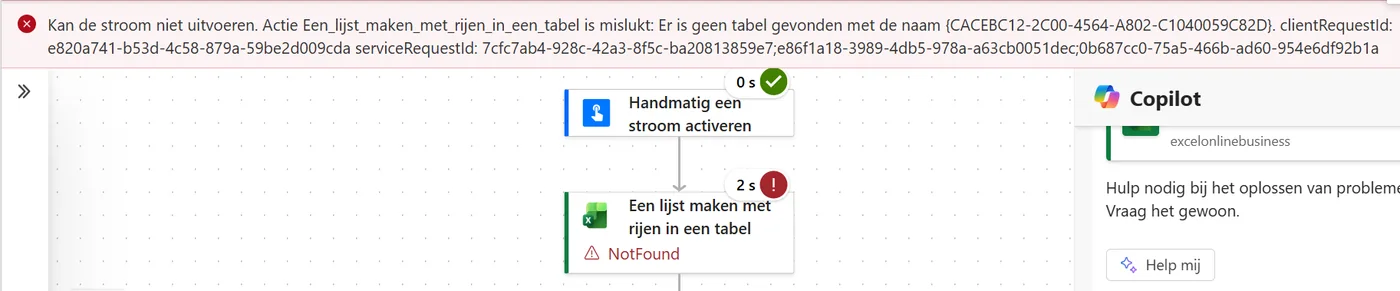
This is what a failed run looks like. The step with the error is red. Tap the image to enlarge. It shows the Dutch interface. -
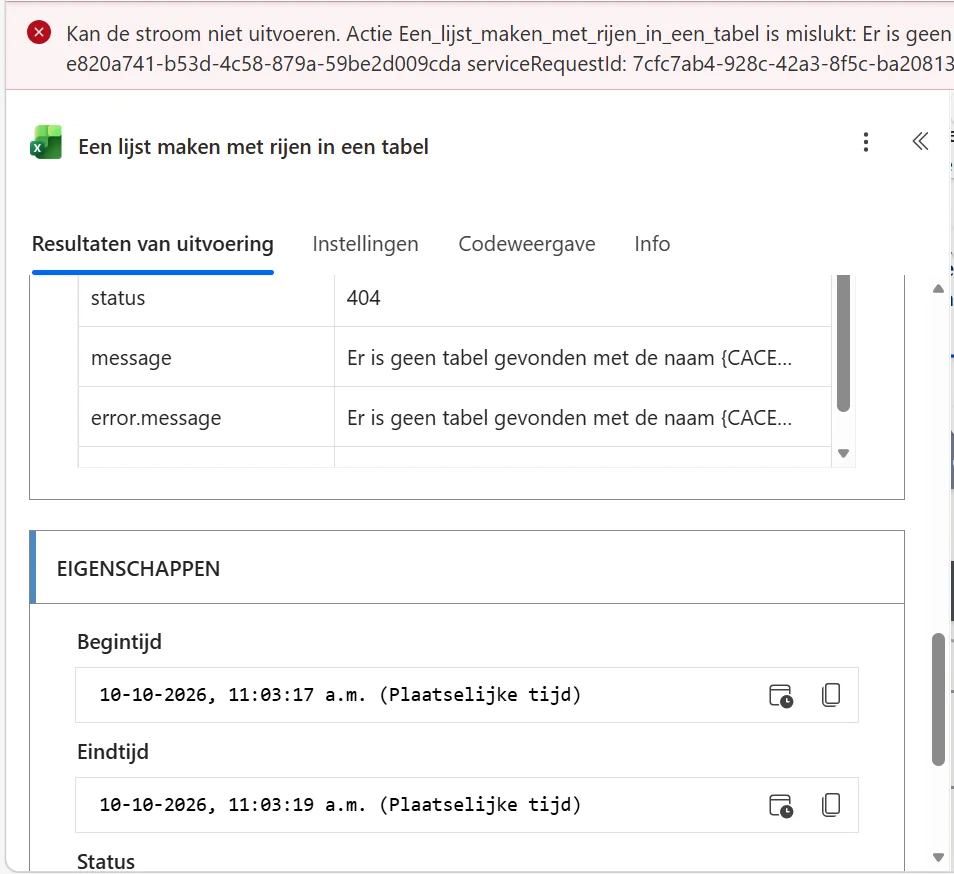
The error message is here. Tap the image to enlarge. It shows the Dutch interface.
Only renaming the table? Then the flow keeps working, because Power Automate recognizes the table by an ID and not by its name. It only goes wrong when the table disappears. Long error messages: mainly read the beginning. That is where it says what is wrong. You mostly need the codes after it when you ask for help.
Last updated: