You let Power Automate go through an Excel list and email a reminder only for tasks that are not done yet. You can use this pattern wherever data lives in Excel: schedules, order lists and checklists.
Intermediate20 minutes
What do you need? An Excel file on OneDrive or SharePoint, not only on your own computer, and an Outlook mailbox.
What the flow looks like
Manually trigger a flow
Trigger · Manual
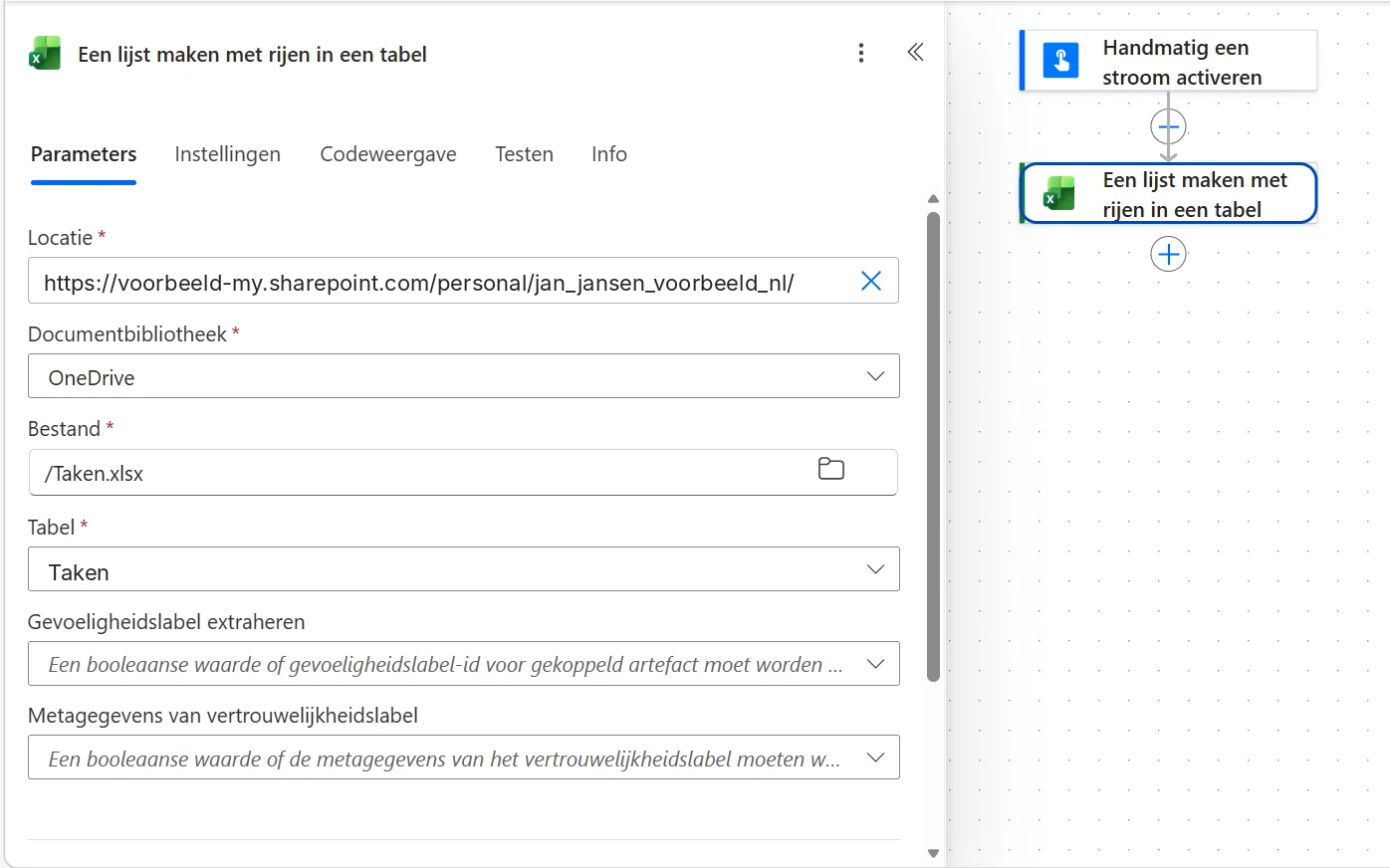
List rows present in a table
Action · Excel Online (Business)Table: Tasks
Apply to each
Loop · ControlOutput: value
Condition
ControlStatus is equal to Not done
Send an email (V2)
Action · OutlookSubject: Open task
The flow goes through your table row by row.
First, a table in Excel
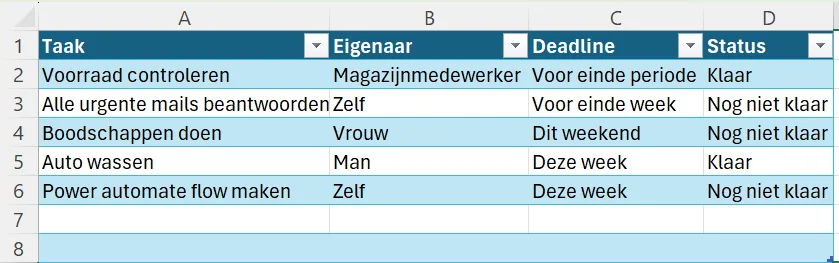
Power Automate only reads data that is formatted as a table in Excel. A loose sheet of cells does not work. Steps 1 and 2 below create that table.
Step by step
0 of 9 steps checked off
A table named Tasks in Excel. Tap the image to enlarge. It shows the Dutch interface.
Choose the file and the table. Tap the image to enlarge. It shows the Dutch interface.
More than 256 rows? By default the action retrieves at most 256 rows. Under Settings of the action, turn on Pagination and enter a higher number. Seeing a number like 46300 instead of a date? That is how Excel stores dates. In the action, choose ISO 8601 under Date Time Format for a readable date.