You build a flow that starts with a button, asks someone for approval and then sends an email with the outcome. The approver gets the request in Teams and by email. You use everything from the previous lessons: a trigger, actions, a condition and dynamic content.
Intermediate15 minutes
What do you need? An Outlook mailbox and Microsoft Teams. For the test you can enter yourself as the approver.
What the flow looks like
Manually trigger a flow
Trigger · Manual
Start and wait for an approval
Action · ApprovalsAssigned to: you
Condition
ControlOutcome is equal to Approve
Send an email (V2)
Action · OutlookSubject: Approved
In False, you send an email with the subject Rejected.
How does an approval work?
The action from the Approvals connector sends a request to one or more people and waits for an answer. In the meantime the flow stands still and only continues when someone has replied. You then use that answer, approved or rejected, in a condition.
Step by step
0 of 9 steps checked off
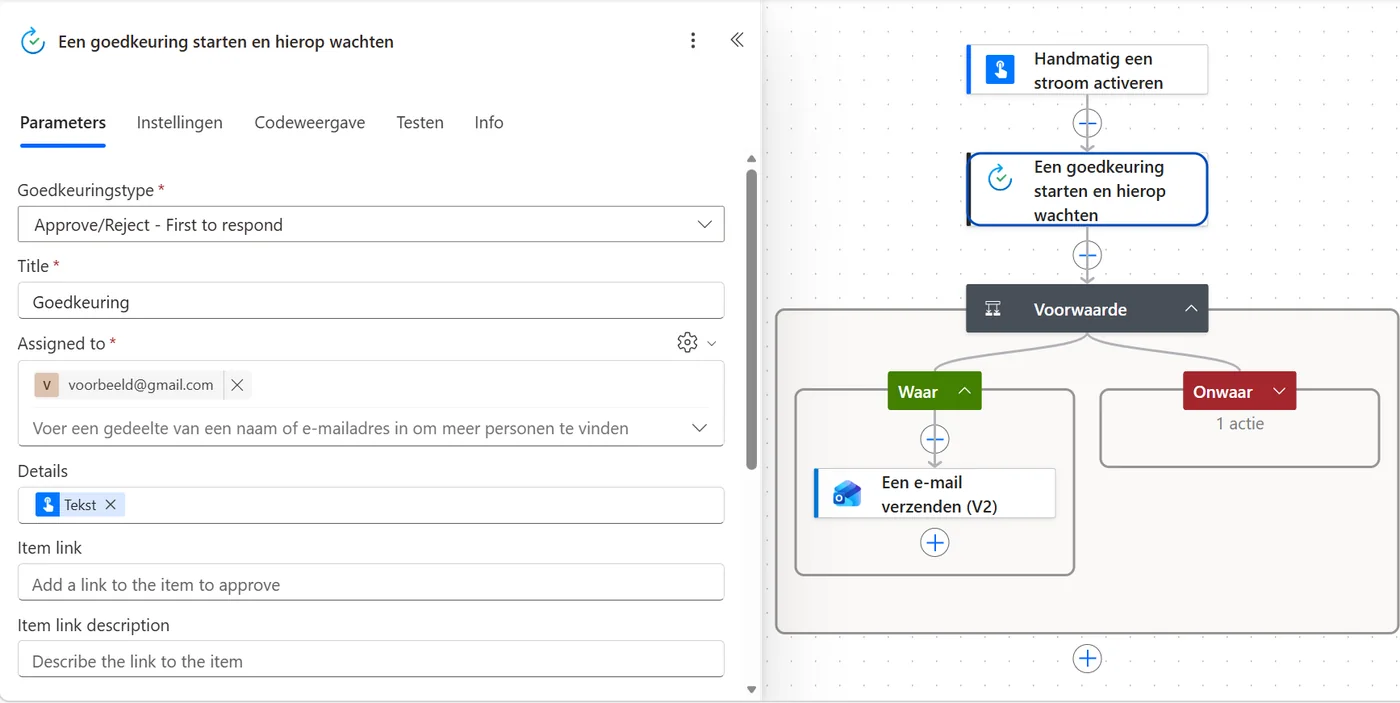
The approval action is filled in. Tap the image to enlarge. It shows the Dutch interface.
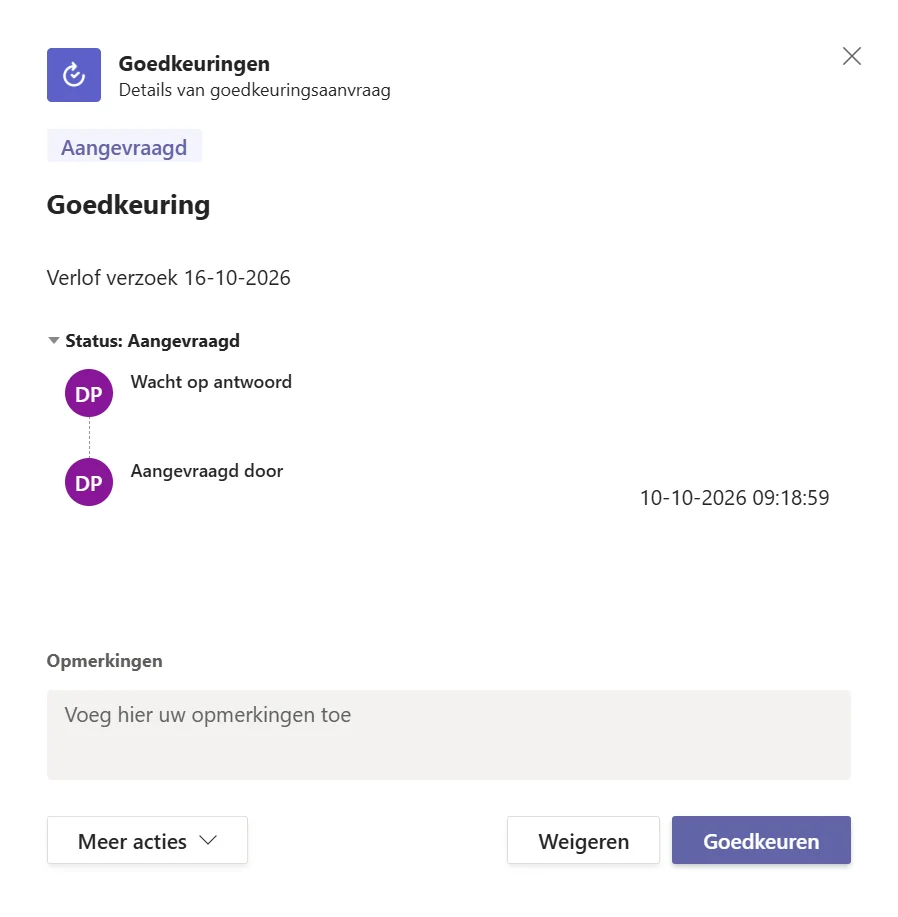
This is how the approver sees the request in Teams. Tap the image to enlarge. It shows the Dutch interface.
No request in Teams? Check your email, because the request arrives there as well. If you see nothing there either, check that the address under Assigned to is correct.